Java Write Files
Updated 12 min read Aimerscrew
Reading files lets your program remember; writing files lets it record. In this lesson you'll learn how to write to a file in Java: saving text in one line, choosing between replacing a file and adding to it, writing piece by piece with BufferedWriter, and producing neatly formatted reports and CSV files with PrintWriter. It follows on from reading files in Java, and every example reads its file back so you can see exactly what was written.
🌍 Real-life example
Think of a whiteboard and a guest book. When you write on the whiteboard, you usually wipe it clean first: the old notes are gone. A hotel guest book works the other way: every new guest adds a line at the bottom and the earlier entries stay. Writing a file in Java works like either one. You choose whether to overwrite (whiteboard) or append (guest book).
How to write a String to a file
The quickest way to write text is Files.writeString(path, text). It creates the file if it doesn't exist, writes the text as UTF-8 and closes the file, all in one call:
import java.io.IOException;
import java.nio.file.Files;
import java.nio.file.Path;

public class ShoppingList {
    public static void main(String[] args) throws IOException {
        Path list = Path.of("shopping.txt");

        Files.writeString(list, "eggs\nbread\nmilk\n");
        System.out.println("First write:");
        System.out.print(Files.readString(list));

        Files.writeString(list, "apples\n");
        System.out.println("Second write:");
        System.out.print(Files.readString(list));

        Files.delete(list);
    }
}
First write:
eggs
bread
milk
Second write:
applesLook at the second write: eggs, bread and milk are gone. By default, writeString overwrites the file, replacing everything that was there. Notice also the \n at the end of each line: Java writes exactly the characters you give it, and adds no line breaks of its own.
How to append to a file in Java
To add text to the end of a file instead of replacing it, pass StandardOpenOption.APPEND as an extra argument. A step counter adds one line per day:
import java.io.IOException;
import java.nio.file.Files;
import java.nio.file.Path;
import java.nio.file.StandardOpenOption;

public class StepCounter {
    public static void main(String[] args) throws IOException {
        Path steps = Path.of("steps.txt");

        Files.writeString(steps, "Mon 8200\n");
        Files.writeString(steps, "Tue 10450\n", StandardOpenOption.APPEND);
        Files.writeString(steps, "Wed 6900\n", StandardOpenOption.APPEND);

        System.out.print(Files.readString(steps));
        Files.delete(steps);
    }
}
Mon 8200
Tue 10450
Wed 6900The first call creates the file (and would wipe an old one); the next two add to the end.
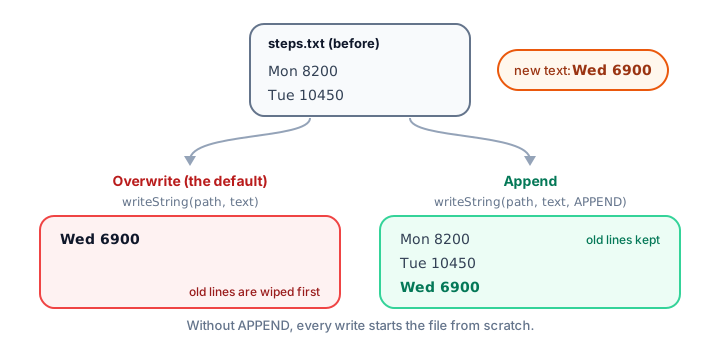
StandardOpenOption: CREATE, APPEND and TRUNCATE_EXISTING
StandardOpenOption is an enum of settings that tell Java how to open a file. You can pass several at once. These are the ones you'll use most:
| Option | Meaning |
|---|---|
CREATE | Create the file if it doesn't exist; use it if it does |
CREATE_NEW | Create a new file, and fail if it already exists |
APPEND | Write at the end of the file, keeping the old content |
TRUNCATE_EXISTING | Empty the file first, then write (the "wipe the whiteboard" step) |
WRITE | Open the file for writing |
When you pass no options, Java uses CREATE, TRUNCATE_EXISTING and WRITE. That's why a plain writeString overwrites. When you pass your own options, those defaults no longer apply, which leads to a surprise: APPEND on its own fails if the file doesn't exist yet. The fix is to combine CREATE with APPEND:
import java.io.IOException;
import java.nio.file.FileAlreadyExistsException;
import java.nio.file.Files;
import java.nio.file.NoSuchFileException;
import java.nio.file.Path;
import java.nio.file.StandardOpenOption;

public class OpenOptions {
    public static void main(String[] args) throws IOException {
        Path notes = Path.of("meeting-notes.txt");

        // APPEND alone needs the file to exist already
        try {
            Files.writeString(notes, "Agenda\n", StandardOpenOption.APPEND);
        } catch (NoSuchFileException e) {
            System.out.println("APPEND alone failed: no file yet");
        }

        // CREATE + APPEND: make the file if needed, then add to the end
        Files.writeString(notes, "Agenda\n", StandardOpenOption.CREATE, StandardOpenOption.APPEND);
        Files.writeString(notes, "1. Budget\n", StandardOpenOption.CREATE, StandardOpenOption.APPEND);
        System.out.print(Files.readString(notes));

        // CREATE_NEW refuses to touch a file that already exists
        try {
            Files.writeString(notes, "Oops\n", StandardOpenOption.CREATE_NEW);
        } catch (FileAlreadyExistsException e) {
            System.out.println("CREATE_NEW failed: file already exists");
        }

        // TRUNCATE_EXISTING empties the file before writing
        Files.writeString(notes, "Meeting cancelled\n",
                StandardOpenOption.WRITE, StandardOpenOption.TRUNCATE_EXISTING);
        System.out.print(Files.readString(notes));

        Files.delete(notes);
    }
}
APPEND alone failed: no file yet
Agenda
1. Budget
CREATE_NEW failed: file already exists
Meeting cancelled💡 Tip
For a log file that should keep growing, the safe combination is CREATE, APPEND: it works on the very first run (no file yet) and on every run after that. Use CREATE_NEW when overwriting something by accident would be bad, such as an exported invoice.
Writing a list of lines with Files.write
If your data is already in a list, Files.write(path, lines) writes each element on its own line. It adds the line breaks for you, using the operating system's line separator:
import java.io.IOException;
import java.nio.file.Files;
import java.nio.file.Path;
import java.util.List;

public class GuestList {
    public static void main(String[] args) throws IOException {
        Path guests = Path.of("guests.txt");
        List<String> names = List.of("Priya", "Tom", "Chloe", "Diego");

        Files.write(guests, names);   // one name per line

        List<String> fromFile = Files.readAllLines(guests);
        System.out.println("Saved " + fromFile.size() + " guests: " + fromFile);
        Files.delete(guests);
    }
}
Saved 4 guests: [Priya, Tom, Chloe, Diego]Files.write accepts the same StandardOpenOption values, so Files.write(guests, moreNames, StandardOpenOption.APPEND) adds names to the end.
Writing a file with BufferedWriter
Each call to writeString opens and closes the file. That's fine a few times, but slow inside a loop that writes thousands of lines. A BufferedWriter keeps the file open, collects your text in a memory buffer and writes it to disk in big chunks. Create one with Files.newBufferedWriter, inside try-with-resources:
import java.io.BufferedWriter;
import java.io.IOException;
import java.nio.charset.StandardCharsets;
import java.nio.file.Files;
import java.nio.file.Path;

public class SeatMap {
    public static void main(String[] args) throws IOException {
        Path seats = Path.of("seat-map.txt");

        try (BufferedWriter writer = Files.newBufferedWriter(seats, StandardCharsets.UTF_8)) {
            writer.write("Flight AC 875 - rows 1 to 4");
            writer.newLine();
            for (int row = 1; row <= 4; row++) {
                writer.write("Row " + row + ": A B C _ D E F");
                writer.newLine();
            }
        }

        for (String line : Files.readAllLines(seats)) {
            System.out.println(line);
        }
        Files.delete(seats);
    }
}
Flight AC 875 - rows 1 to 4
Row 1: A B C _ D E F
Row 2: A B C _ D E F
Row 3: A B C _ D E F
Row 4: A B C _ D E Fwrite() adds text, and newLine() adds the correct line break for the operating system. When the try block ends, the writer is closed, which also flushes it: any text still waiting in the buffer is written to disk.
⚠️ Be careful
If you create a BufferedWriter without try-with-resources and forget to close it, the last part of your text may stay in the buffer and never reach the file. The file can end up empty or cut off. Let try-with-resources close it for you.
Formatted output with PrintWriter and printf
A PrintWriter gives you the same println and printf methods you know from System.out, but they write to a file. Wrap it around a BufferedWriter to get both speed and convenience. It's perfect for receipts and reports:
import java.io.IOException;
import java.io.PrintWriter;
import java.nio.charset.StandardCharsets;
import java.nio.file.Files;
import java.nio.file.Path;

public class Receipt {
    public static void main(String[] args) throws IOException {
        Path receipt = Path.of("receipt.txt");
        String[] items = {"Margherita pizza", "Garlic bread", "Lemonade"};
        double[] prices = {11.50, 4.25, 2.75};

        try (PrintWriter out = new PrintWriter(Files.newBufferedWriter(receipt, StandardCharsets.UTF_8))) {
            out.println("=== Luigi's Pizzeria ===");
            double total = 0;
            for (int i = 0; i < items.length; i++) {
                out.printf("%-18s $%6.2f%n", items[i], prices[i]);
                total += prices[i];
            }
            out.println("-".repeat(26));
            out.printf("%-18s $%6.2f%n", "Total", total);
        }

        System.out.print(Files.readString(receipt));
        Files.delete(receipt);
    }
}
=== Luigi's Pizzeria ===
Margherita pizza $ 11.50
Garlic bread $ 4.25
Lemonade $ 2.75
--------------------------
Total $ 18.50Inside printf, %n is the line break, %-18s pads a String to 18 characters, and %6.2f prints a number with two decimals in 6 spaces. The format codes are the same as in Java output formatting.
📝 Note
PrintWriter never throws IOException from println or printf. Instead it quietly records the problem, and you can ask with out.checkError(). Opening the file, in Files.newBufferedWriter, can still throw.
Real-world example: appending to an activity log
Apps keep logs: files where every important event gets one new line at the end. Here a small log method opens the file with CREATE and APPEND, so each call adds a line and nothing is ever lost:
import java.io.BufferedWriter;
import java.io.IOException;
import java.nio.charset.StandardCharsets;
import java.nio.file.Files;
import java.nio.file.Path;
import java.nio.file.StandardOpenOption;

public class ActivityLog {
    private static final Path LOG = Path.of("activity.log");

    public static void main(String[] args) throws IOException {
        Files.deleteIfExists(LOG);   // start this demo with an empty log

        log("10:02", "Sam added 2 tickets to the cart");
        log("10:04", "Sam applied code SUMMER10");
        log("10:05", "Sam paid $54.00");

        System.out.println("Log has " + Files.readAllLines(LOG).size() + " entries:");
        System.out.print(Files.readString(LOG));
        Files.delete(LOG);
    }

    static void log(String time, String message) throws IOException {
        try (BufferedWriter writer = Files.newBufferedWriter(LOG, StandardCharsets.UTF_8,
                StandardOpenOption.CREATE, StandardOpenOption.APPEND)) {
            writer.write("[" + time + "] " + message);
            writer.newLine();
        }
    }
}
Log has 3 entries:
[10:02] Sam added 2 tickets to the cart
[10:04] Sam applied code SUMMER10
[10:05] Sam paid $54.00The deleteIfExists call at the start only makes this demo give the same output every time you run it. In a real app you'd keep the old entries and let the log grow.
How to write a CSV file in Java
Writing a CSV report is just writing lines with commas between the values. Start with a header line, then one line per row. This online store turns a list of records into a sales report that any spreadsheet app can open:
import java.io.IOException;
import java.io.PrintWriter;
import java.nio.charset.StandardCharsets;
import java.nio.file.Files;
import java.nio.file.Path;
import java.util.List;

public class SalesReport {
    public static void main(String[] args) throws IOException {
        List<Sale> sales = List.of(
                new Sale("Hoodie", 39.99, 3),
                new Sale("Cap", 15.00, 5),
                new Sale("Socks", 7.50, 8));

        Path report = Path.of("sales-report.csv");
        try (PrintWriter out = new PrintWriter(Files.newBufferedWriter(report, StandardCharsets.UTF_8))) {
            out.println("product,price,qty,revenue");
            for (Sale sale : sales) {
                out.printf("%s,%.2f,%d,%.2f%n",
                        sale.product(), sale.price(), sale.qty(), sale.price() * sale.qty());
            }
        }

        System.out.println("Wrote " + Files.readAllLines(report).size() + " lines to " + report.getFileName());
        System.out.print(Files.readString(report));
        Files.delete(report);
    }
}

record Sale(String product, double price, int qty) { }
Wrote 4 lines to sales-report.csv
product,price,qty,revenue
Hoodie,39.99,3,119.97
Cap,15.00,5,75.00
Socks,7.50,8,60.00Using %.2f keeps prices like 15.00 looking like money instead of 15.0. Make sure your values don't contain commas themselves, or they'll be split into extra columns when the file is read.
Which way of writing a file should you use?
| Method | Best for |
|---|---|
Files.writeString(path, text) | Saving one String in one line of code |
Files.writeString(path, text, CREATE, APPEND) | Adding a line to a log or history file |
Files.write(path, lines) | Saving a List of lines |
BufferedWriter | Writing many lines in a loop, efficiently |
PrintWriter + printf | Formatted reports, receipts and CSV files |
Common mistakes when writing files
1. Overwriting when you meant to append
A plain writeString wipes the file every time. If your "log" only ever contains the last entry, you forgot StandardOpenOption.APPEND.
2. Using APPEND without CREATE
APPEND alone throws NoSuchFileException when the file doesn't exist yet. Pass CREATE, APPEND together.
3. Forgetting line breaks
writeString and BufferedWriter.write don't add line breaks. Add \n, call newLine(), or use println / %n with a PrintWriter.
4. Not closing the writer
Text in a buffer only reaches the disk when the writer is flushed or closed. Always use try-with-resources.
5. Writing into a folder that doesn't exist
Files.writeString(Path.of("reports", "may.csv"), text) fails if the reports folder is missing. Create it first with Files.createDirectories.
Practice exercise
🏋️ Try it yourself
Build a tiny habit tracker. Write the title line Habit tracker to habits.txt (replacing any old file). Then, in a loop, append these three entries, one per line: Mon: read 20 pages, Tue: ran 3 km, Wed: read 15 pages. Finally, read the file back, print every line, and print how many days were logged.
Show solution
import java.io.IOException;
import java.nio.file.Files;
import java.nio.file.Path;
import java.nio.file.StandardOpenOption;
import java.util.List;

public class HabitTracker {
    public static void main(String[] args) throws IOException {
        Path habits = Path.of("habits.txt");

        Files.writeString(habits, "Habit tracker\n");   // overwrite: fresh file

        String[] days = {"Mon: read 20 pages", "Tue: ran 3 km", "Wed: read 15 pages"};
        for (String day : days) {
            Files.writeString(habits, day + "\n", StandardOpenOption.APPEND);
        }

        List<String> lines = Files.readAllLines(habits);
        for (String line : lines) {
            System.out.println(line);
        }
        System.out.println("Days logged: " + (lines.size() - 1));
        Files.delete(habits);
    }
}
Habit tracker
Mon: read 20 pages
Tue: ran 3 km
Wed: read 15 pages
Days logged: 3The file already exists after the first write, so APPEND on its own is fine inside the loop.
What's next?
You can now read and write files like a pro. Next, discover how a Java program can do several things at the same time with Java threads.
Key takeaways
- Files.writeString(path, text) creates the file if needed and overwrites any existing content.
- Add StandardOpenOption.APPEND to add text to the end of a file instead of replacing it.
- With no options Java uses CREATE, TRUNCATE_EXISTING and WRITE; APPEND alone fails if the file is missing, so use CREATE and APPEND together.
- Files.write(path, lines) writes a List with one element per line.
- BufferedWriter is efficient for many writes; newLine() adds a line break and closing the writer flushes the buffer.
- PrintWriter adds println and printf, which makes formatted reports and CSV files easy.
- Always open writers in try-with-resources so text is not lost in the buffer.
Frequently asked questions
How do I write a String to a file in Java?
Call Files.writeString(Path.of("file.txt"), text), available since Java 11. It creates the file if it does not exist, writes the text as UTF-8, and replaces any old content.
How do I append to a file instead of overwriting it?
Pass StandardOpenOption.CREATE and StandardOpenOption.APPEND, for example Files.writeString(path, text, StandardOpenOption.CREATE, StandardOpenOption.APPEND). The new text is added at the end and the file is created on the first run.
Does Files.writeString create the file if it does not exist?
Yes, when you pass no options. If you pass your own options, such as APPEND alone, the defaults no longer apply, so include CREATE as well if the file might not exist yet.
What is the difference between BufferedWriter and PrintWriter?
BufferedWriter writes text efficiently using a memory buffer and has write and newLine methods. PrintWriter adds convenient print, println and printf methods. A common pattern is a PrintWriter wrapped around a BufferedWriter to get both.
Why is my file empty after writing to it?
Usually the writer was never closed or flushed, so the text stayed in its buffer. Open the writer in a try-with-resources block, which closes and flushes it automatically when the block ends.