Java File Handling
Updated 13 min read Aimerscrew
So far, everything your programs knew disappeared the moment they finished. Java file handling changes that: your program can save data to a file on disk and find it again next time, just like a game remembering your high score. In this lesson you'll learn the two file APIs Java offers, how to describe a file's location with a Path, and how to create, check, list and delete files and folders safely. The next two lessons build on this to read files and write files.
🌍 Real-life example
Think of a library. A book's location is written on a card: "Floor 2, Shelf C, slot 14". The card isn't the book, it just says where to find it. A librarian then does the actual work: fetching the book, putting a new one on the shelf or throwing out an old one. In Java, a Path is the card that says where a file is, and the Files class is the librarian who does the work.
What is file handling in Java?
File handling is everything a program does with files and folders on disk: creating them, checking whether they exist, reading from them, writing to them, listing what's inside a folder, and deleting them. A file holds data, such as text or an image. A folder (also called a directory) holds files and other folders.
Files are how programs keep data between runs. A to-do app saves your tasks to a file, a game saves your progress, and an online shop writes a daily sales report.
java.io.File vs java.nio.file: which should you use?
Java has two ways to work with files. The old one is the File class in the java.io package, which has been around since Java 1.0. The modern one, added in Java 7, lives in the java.nio.file package and is built around two types: Path and Files.
import java.io.File;
import java.nio.file.Files;
import java.nio.file.Path;

public class FirstLook {
    public static void main(String[] args) {
        // The classic way (java.io)
        File oldStyle = new File("notes.txt");
        System.out.println("File name: " + oldStyle.getName());
        System.out.println("Exists? " + oldStyle.exists());

        // The modern way (java.nio.file)
        Path newStyle = Path.of("notes.txt");
        System.out.println("Path name: " + newStyle.getFileName());
        System.out.println("Exists? " + Files.exists(newStyle));
    }
}
File name: notes.txt
Exists? false
Path name: notes.txt
Exists? falseBoth print false because there's no notes.txt in the folder yet. Creating a File or a Path object never creates a real file. It only describes a location.
java.io.File (old) | Path + Files (modern) | |
|---|---|---|
| Added in | Java 1.0 | Java 7 |
| When something fails | Often just returns false, no reason given | Throws an exception that says what went wrong |
| Reading and writing text | Needs extra reader and writer classes | One-line helpers like Files.readString |
| Use it for | Older code you have to maintain | All new code |
This course uses Path and Files. You'll still meet File in older projects, and you can convert between them with file.toPath() and path.toFile().
What is a Path in Java?
A Path is an object that describes the location of a file or folder. You create one with Path.of(...), passing the folder names and the file name as separate pieces. Java joins them with the right separator for the operating system: / on macOS and Linux, \ on Windows.
import java.nio.file.Path;

public class PathParts {
    public static void main(String[] args) {
        Path report = Path.of("reports", "2026", "march-sales.csv");

        System.out.println("File name: " + report.getFileName());
        System.out.println("Parts: " + report.getNameCount());
        System.out.println("First folder: " + report.getName(0));
        System.out.println("Parent folder: " + report.getParent().getFileName());

        String name = report.getFileName().toString();
        String extension = name.substring(name.lastIndexOf('.') + 1);
        System.out.println("Extension: " + extension);
    }
}
File name: march-sales.csv
Parts: 3
First folder: reports
Parent folder: 2026
Extension: csv📝 Note
You'll also see Paths.get("reports", "2026") in older code. It does exactly the same as Path.of, which was added in Java 11 and is the shorter, preferred choice today.
The method resolve adds a name to the end of a path. If folder is the path playground, then folder.resolve("todo.txt") is the path to todo.txt inside it. You'll use it a lot in the examples below.
Relative vs absolute paths
Every running program has a working folder (also called the current directory): the folder you were in when you typed java MyProgram.java. Paths come in two kinds:
- A relative path, like
data/orders.csv, starts from the working folder. It's short and works on any computer, as long as the program is run from the right place. - An absolute path starts from the very top of the drive, like
/home/sam/shop/data/orders.csvon Linux or macOS, orC:\Users\sam\shop\data\orders.csvon Windows. It always points to the same place, but it's tied to one computer.
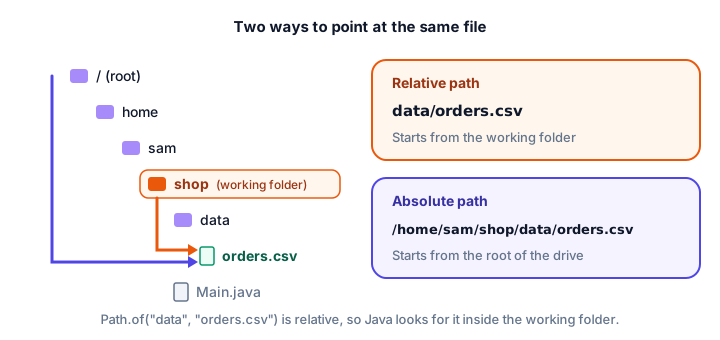
Use relative paths in your programs so they work on any machine. You can turn a relative path into an absolute one with toAbsolutePath():
import java.nio.file.Path;

public class AbsoluteCheck {
    public static void main(String[] args) {
        Path relative = Path.of("data", "orders.csv");
        Path absolute = relative.toAbsolutePath();

        System.out.println("relative.isAbsolute(): " + relative.isAbsolute());
        System.out.println("absolute.isAbsolute(): " + absolute.isAbsolute());
        System.out.println("Same file name? " + absolute.getFileName().equals(relative.getFileName()));
        System.out.println("Absolute ends with the relative path? " + absolute.endsWith(relative));
    }
}
relative.isAbsolute(): false
absolute.isAbsolute(): true
Same file name? true
Absolute ends with the relative path? trueWe didn't print the absolute path itself, because it's different on every computer. Try printing absolute on your own machine to see where your working folder is.
How to create, check and delete files
The Files class has a static method for each job. Here a program creates a folder and a file inside it, checks them, writes a little text, and then deletes both:
import java.io.IOException;
import java.nio.file.Files;
import java.nio.file.Path;

public class CreateAndDelete {
    public static void main(String[] args) throws IOException {
        Path folder = Path.of("playground");
        Path file = folder.resolve("todo.txt");

        Files.createDirectory(folder);
        Files.createFile(file);
        System.out.println("Folder exists? " + Files.exists(folder));
        System.out.println("Is it a folder? " + Files.isDirectory(folder));
        System.out.println("File exists? " + Files.exists(file));
        System.out.println("Is it a regular file? " + Files.isRegularFile(file));
        System.out.println("Size of new file: " + Files.size(file) + " bytes");

        Files.writeString(file, "Buy milk");
        System.out.println("Size after writing: " + Files.size(file) + " bytes");

        Files.delete(file);     // a folder must be empty before you delete it
        Files.delete(folder);
        System.out.println("File exists now? " + Files.exists(file));
        System.out.println("Folder exists now? " + Files.exists(folder));
    }
}
Folder exists? true
Is it a folder? true
File exists? true
Is it a regular file? true
Size of new file: 0 bytes
Size after writing: 8 bytes
File exists now? false
Folder exists now? falseHere's what each method does:
| Method | What it does |
|---|---|
Files.exists(path) / Files.notExists(path) | Checks whether something is at that location |
Files.isDirectory(path) / Files.isRegularFile(path) | Checks whether it's a folder or a normal file |
Files.createFile(path) | Creates a new, empty file (fails if it already exists) |
Files.createDirectory(path) | Creates one folder (its parent must already exist) |
Files.createDirectories(path) | Creates a folder and any missing parents; no error if it exists |
Files.size(path) | Returns the file's size in bytes, as a long |
Files.delete(path) | Deletes a file or an empty folder (fails if it's missing) |
Files.deleteIfExists(path) | Deletes it if it's there and returns true, otherwise returns false |
Creating nested folders with createDirectories
A photo app might store pictures in photos/2026/summer. createDirectory would fail here because photos doesn't exist yet. createDirectories creates every missing folder along the way, and it's happy to be called again when they already exist:
import java.io.IOException;
import java.nio.file.Files;
import java.nio.file.Path;

public class NestedFolders {
    public static void main(String[] args) throws IOException {
        Path summer = Path.of("photos", "2026", "summer");

        Files.createDirectories(summer);   // creates photos, 2026 and summer
        Files.createDirectories(summer);   // already there: no error
        System.out.println("Is " + summer.getFileName() + " a folder? "
                + Files.isDirectory(summer));

        Path beach = summer.resolve("beach.jpg");
        if (Files.notExists(beach)) {
            Files.createFile(beach);
            System.out.println("Created " + beach.getFileName());
        }

        // Clean up from the inside out
        Files.delete(beach);
        Files.delete(summer);
        Files.delete(Path.of("photos", "2026"));
        Files.delete(Path.of("photos"));
        System.out.println("photos still there? " + Files.exists(Path.of("photos")));
    }
}
Is summer a folder? true
Created beach.jpg
photos still there? falseNotice the clean-up order: the file first, then the deepest folder, working outwards. Files.delete refuses to delete a folder that still has something inside it.
Listing the files in a folder
Files.list(folder) gives you everything directly inside a folder as a stream of Path objects. Two things to know:
- The order is not guaranteed. It depends on the operating system, so call
sorted()when the order matters. - The stream keeps the folder open, so put it in a try-with-resources block to close it.
import java.io.IOException;
import java.nio.file.Files;
import java.nio.file.Path;
import java.util.List;
import java.util.stream.Stream;

public class ListInbox {
    public static void main(String[] args) throws IOException {
        Path inbox = Files.createDirectories(Path.of("inbox"));
        Files.writeString(inbox.resolve("receipt.txt"), "Coffee $3.50");
        Files.writeString(inbox.resolve("agenda.txt"), "Team meeting at 10");
        Files.writeString(inbox.resolve("menu.txt"), "Pizza, pasta, salad");

        List<Path> files;
        try (Stream<Path> entries = Files.list(inbox)) {
            files = entries.sorted().toList();
        }

        System.out.println("Files in inbox: " + files.size());
        for (Path file : files) {
            System.out.println("- " + file.getFileName() + " (" + Files.size(file) + " bytes)");
        }

        // Tidy up: delete the files, then the empty folder
        for (Path file : files) {
            Files.delete(file);
        }
        Files.delete(inbox);
    }
}
Files in inbox: 3
- agenda.txt (18 bytes)
- menu.txt (19 bytes)
- receipt.txt (12 bytes)We wrote the files in the order receipt, agenda, menu, but sorted() lists them alphabetically. toList() collects the stream into a List, so we can use it after the stream is closed.
Which exceptions do file methods throw?
Files live outside your program, so lots can go wrong: the file may be missing, already exist, be locked by another app, or you may not have permission. That's why almost every Files method declares IOException, a checked exception. The compiler forces you to handle it in one of two ways:
- Declare it with
throws IOExceptiononmain, as most examples in this lesson do. That's fine for small programs: if something fails, the program stops with an error message. - Catch it with try-catch and handle the problem yourself, which is what real apps should do.
IOException has more specific subclasses, so you can react to each problem differently. NoSuchFileException means the file isn't there:
import java.io.IOException;
import java.nio.file.Files;
import java.nio.file.NoSuchFileException;
import java.nio.file.Path;

public class SafeDelete {
    public static void main(String[] args) {
        Path draft = Path.of("old-draft.txt");

        try {
            Files.delete(draft);
            System.out.println("Deleted " + draft.getFileName());
        } catch (NoSuchFileException e) {
            System.out.println("Nothing to delete: " + draft.getFileName() + " does not exist");
        } catch (IOException e) {
            System.out.println("Could not delete: " + e.getMessage());
        }

        try {
            boolean removed = Files.deleteIfExists(draft);
            System.out.println("deleteIfExists removed a file? " + removed);
        } catch (IOException e) {
            System.out.println("Could not delete: " + e.getMessage());
        }
    }
}
Nothing to delete: old-draft.txt does not exist
deleteIfExists removed a file? falseAnd FileAlreadyExistsException means you tried to create something that's already there:
import java.io.IOException;
import java.nio.file.FileAlreadyExistsException;
import java.nio.file.Files;
import java.nio.file.Path;

public class CreateTwice {
    public static void main(String[] args) throws IOException {
        Path ticket = Path.of("ticket-42.txt");

        Files.createFile(ticket);
        System.out.println("Created " + ticket.getFileName());

        try {
            Files.createFile(ticket);
        } catch (FileAlreadyExistsException e) {
            System.out.println("Already exists: " + ticket.getFileName());
        }

        Files.delete(ticket);
        System.out.println("Deleted " + ticket.getFileName());
    }
}
Created ticket-42.txt
Already exists: ticket-42.txt
Deleted ticket-42.txt💡 Tip
Always catch the specific exceptions first and the general IOException last. Java checks catch blocks from top to bottom and runs the first one that matches.
Ways to read and write files: an overview
Java offers several ways to read and write text files. You'll learn each of them in the next two lessons, but here's the map so you know where you're heading:
| Task | Method | Best for |
|---|---|---|
| Read the whole file | Files.readString(path) | Small files you want as one String |
| Read all lines | Files.readAllLines(path) | Small files you want as a List of lines |
| Read line by line | Files.lines(path) or BufferedReader | Big files, processing one line at a time |
| Read words and numbers | Scanner | Files with values separated by spaces |
| Write text in one go | Files.writeString(path, text) | Saving a String, replacing or appending |
| Write a list of lines | Files.write(path, lines) | Saving a List of lines |
| Write piece by piece | BufferedWriter / PrintWriter | Many writes, formatted reports with printf |
Common mistakes with file handling
1. Thinking Path.of creates a file
Path.of("notes.txt") only describes a location. Nothing appears on disk until you call something like Files.createFile or Files.writeString.
2. Hard-coding absolute paths
A path like C:\Users\sam\Desktop\data.txt works on Sam's computer and nowhere else. Prefer relative paths built with Path.of("data", "file.txt").
3. Deleting a folder that isn't empty
Files.delete throws DirectoryNotEmptyException if the folder still contains anything. Delete the contents first.
4. Relying on the listing order
Files.list may return files in a different order on another computer. Sort the results when the order matters.
5. Forgetting to close Files.list
A stream from Files.list or Files.lines holds the folder or file open. Always use try-with-resources.
Practice exercise
🏋️ Try it yourself
Write a program that creates a folder called backup and three empty files inside it: songs.txt, contacts.txt and budget.txt (only create each file if it doesn't exist yet). Then list the folder's files in alphabetical order, and finally delete the files and the folder.
Show solution
import java.io.IOException;
import java.nio.file.Files;
import java.nio.file.Path;
import java.util.List;
import java.util.stream.Stream;

public class BackupFolder {
    public static void main(String[] args) throws IOException {
        Path backup = Files.createDirectories(Path.of("backup"));

        String[] names = {"songs.txt", "contacts.txt", "budget.txt"};
        for (String name : names) {
            Path file = backup.resolve(name);
            if (Files.notExists(file)) {
                Files.createFile(file);
            }
        }

        List<Path> files;
        try (Stream<Path> entries = Files.list(backup)) {
            files = entries.sorted().toList();
        }
        System.out.println("backup has " + files.size() + " files:");
        for (Path file : files) {
            System.out.println("  " + file.getFileName());
        }

        for (Path file : files) {
            Files.delete(file);
        }
        Files.delete(backup);
        System.out.println("backup deleted? " + Files.notExists(backup));
    }
}
backup has 3 files:
budget.txt
contacts.txt
songs.txt
backup deleted? trueNice touch: Files.createDirectories returns the path it created, so you can create the folder and store its path in one line.
What's next?
You can now create, check, list and delete files and folders. Next, put some data inside them: learn every way of reading files in Java, from one-line helpers to parsing a CSV file.
Key takeaways
- Java file handling means creating, checking, reading, writing, listing and deleting files and folders.
- Use the modern java.nio.file API: a Path describes a location and the Files class does the work.
- Create paths with Path.of("folder", "file.txt"); creating a Path never creates a real file.
- Relative paths start from the working folder; absolute paths start from the root of the drive.
- Files.createDirectories makes missing parent folders, and Files.delete only removes empty folders.
- Files.list returns entries in no guaranteed order, so sort them and close the stream with try-with-resources.
- Most Files methods throw the checked IOException, with subclasses such as NoSuchFileException and FileAlreadyExistsException.
Frequently asked questions
What is the difference between File and Path in Java?
File is the original class from java.io, available since Java 1.0. Path, added in Java 7 in java.nio.file, is the modern replacement. Path works with the Files class, gives clearer exceptions when something fails and has simpler methods for reading and writing, so use it for new code.
How do I check if a file exists in Java?
Call Files.exists(Path.of("name.txt")), which returns true or false. You can also use Files.notExists, Files.isRegularFile to check that it is a normal file, or Files.isDirectory to check that it is a folder.
What is the difference between Path.of and Paths.get?
They do exactly the same thing. Paths.get is the older way; Path.of was added in Java 11 and is the shorter, preferred method today.
Where does Java look for a file with a relative path?
In the working folder, which is the folder you were in when you started the program. You can see it by printing Path.of("").toAbsolutePath().
Why do Java file methods throw IOException?
Because files live outside your program and many things can go wrong: the file may be missing, locked, already exist, or you may lack permission. IOException is a checked exception, so Java makes you either catch it or declare it with throws.