How to Install Java (JDK) on Windows, macOS and Linux
Updated 8 min read Aimerscrew
Before you can write your first program, you need to install Java on your computer. To be precise, you need to install a JDK, the Java Development Kit. It takes about five minutes, and this lesson walks you through every step on Windows, macOS and Linux. At the end, you'll check that everything works, choose an editor, and run a real Java program.
🌍 Real-life example
Installing the JDK is like setting up a kitchen before you cook. The recipe (your code) is useless without a stove and utensils. The JDK is the full kitchen: the compiler that prepares your code, the Java Virtual Machine that "cooks" it, and a drawer full of ready-made tools called the standard library.
What is a JDK?
The JDK (Java Development Kit) is the software package you install to write and run Java programs. It includes:
javac: the Java compiler, which turns your.javafiles into bytecode.java: the launcher, which starts the Java Virtual Machine (JVM) and runs your program.- The standard library: thousands of ready-made classes for text, math, files, dates, lists and much more.
- Extra tools such as
jshell(an interactive Java console) andjavadoc(a documentation generator).
You may also see the term JRE (Java Runtime Environment). A JRE can only run Java programs; it has no compiler. As a programmer, you always want the JDK. You'll see exactly how the JDK, JRE and JVM relate in How Java Works.
Which Java version should you install?
Java gets a new version every six months, and every two years one of them is an LTS (long-term support) release that receives updates for many years. We recommend Java 21, an LTS release, or any newer LTS such as Java 25. Every example in this course runs on Java 17 or newer, so if your school or job already has Java 17 installed, you're fine.
Where to download the JDK
Java is open source, so several companies publish free builds of the same JDK. They all behave the same for learning. Two popular choices:
| Build | Where to get it | Good to know |
|---|---|---|
| Eclipse Temurin | adoptium.net | Free, open source, community-run. Our default suggestion. |
| Oracle JDK | oracle.com/java | Made by Oracle, Java's steward. Check its license terms if you plan to use it at work. |
Other builds, such as Amazon Corretto, Microsoft Build of OpenJDK or Azul Zulu, work just as well.
How to install Java on Windows
Option 1: with winget (the package manager built into Windows 10 and 11). Open PowerShell or Windows Terminal and run:
winget install EclipseAdoptium.Temurin.21.JDKOption 2: with the installer. Go to adoptium.net, download the .msi installer for Windows x64, and run it. On the "Custom Setup" screen, make sure Add to PATH is turned on, and also turn on Set JAVA_HOME variable. Then click through to finish.
Either way, close your terminal and open a new one afterwards. A terminal only picks up new programs when it starts.
How to install Java on macOS
Option 1: with Homebrew (a popular package manager for macOS). In the Terminal app, run:
brew install --cask temurin@21Option 2: with the installer. Download the .pkg file from adoptium.net. Pick aarch64 for Macs with Apple chips (M1, M2 and later) or x64 for older Intel Macs. Open it and follow the steps.
How to install Java on Linux
Most Linux distributions offer OpenJDK in their package manager. On Ubuntu or Debian:
sudo apt update
sudo apt install openjdk-21-jdk
If your distribution doesn't have version 21 yet, install openjdk-17-jdk instead; it works for this course. On Fedora:
sudo dnf install java-21-openjdk-develMake sure the package name ends in -jdk or -devel. Packages without it may install only the runtime, without the compiler.
How to check that Java is installed
Open a new terminal and run these two commands:
java -version
javac -version
The first command prints two or three lines about your Java runtime. The first line contains the version number, for example something like openjdk version "21.0.5"; the exact numbers and the vendor name depend on what you installed. The second command prints one short line, such as javac 21.0.5. If both commands show a version of 17 or higher, you're ready to go.
⚠️ "java is not recognized" or "command not found"?
That means your terminal can't find Java. First, open a brand-new terminal and try again. If it still fails, the JDK's bin folder isn't on your PATH, the list of folders your system searches for commands. On Windows, run the installer again and turn on "Add to PATH", or add the folder (for example C:\Program Files\Eclipse Adoptium\jdk-21...\bin) under Settings → System → About → Advanced system settings → Environment Variables.
Choosing an editor or IDE
You can write Java in any plain text editor, but a good tool colors your code, spots typos as you type, and runs programs with one click. An IDE (integrated development environment) bundles all of that.
| Tool | Best for | Notes |
|---|---|---|
| IntelliJ IDEA | Serious Java work | The most popular Java IDE. The free edition (long known as Community Edition) covers everything in this course. |
| VS Code + Java extension | A light, all-purpose editor | Install Microsoft's "Extension Pack for Java" from the Extensions panel. |
| Eclipse | Schools and older projects | Free and long-standing, a bit busier to look at. |
💡 Tip
For the first few lessons, try running programs from the terminal at least once, even if you use an IDE. When you know what the "Run" button does behind the scenes, error messages make much more sense.
How to run your first Java program
Let's prove the setup works. Create a folder, for example java-course, and inside it a file named exactly Hello.java with this code:
public class Hello {
    public static void main(String[] args) {
        System.out.println("Hello from Java!");
        System.out.println("Your setup works.");
    }
}
Hello from Java!
Your setup works.Open a terminal in that folder (or use cd java-course to move into it). There are two ways to run the program.
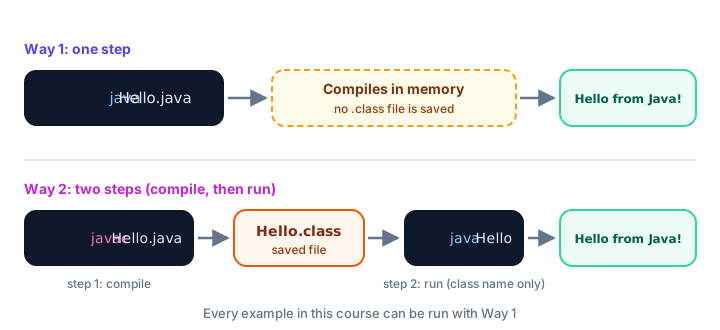
Way 1: run the source file directly
java Hello.javaSince Java 11, the java command can take a single .java file, compile it in memory, and run it straight away. No extra files are created. This is the quickest way to try small programs, and it's how every example in this course can be run.
Way 2: compile with javac, then run with java
javac Hello.java
java Hello
The first command compiles your code and creates a new file, Hello.class, containing bytecode. The second command runs that compiled class. Notice that you type java Hello, the class name, without .java or .class on the end. This two-step way is what real projects use, because you compile once and run many times.
Both ways print the same two lines you saw above.
📝 Bonus: try Java instantly with JShell
The JDK includes jshell, an interactive console where you type one line of Java and see the result right away. Start it by typing jshell in a terminal, then try 2 + 3 or System.out.println("hi"). Type /exit to leave. It's handy for quick experiments, though in this course we'll write full programs.
Common mistakes when installing Java
1. Installing a JRE instead of a JDK
If java -version works but javac -version says "not found", you have only a runtime. Install a full JDK.
2. Using an old terminal window
A terminal that was open during the installation doesn't know about Java yet. Close it and open a new one.
3. Typing java Hello.class
After compiling with javac, run the class by name: java Hello. Adding .class gives an error like Could not find or load main class Hello.class.
4. Running from the wrong folder
If Java says it can't find Hello.java, your terminal is in a different folder. Use cd to move to the folder that contains the file.
5. Several Java versions fighting
If java -version and javac -version show different numbers, an older Java is earlier on your PATH. Remove the old one or put the new JDK's bin folder first.
Practice exercise
🏋️ Try it yourself
Create a file called SetupCheck.java that prints three lines: your name, the editor you chose, and the message Ready to learn Java!. Run it both ways: first with java SetupCheck.java, then with javac followed by java.
Show solution
public class SetupCheck {
    public static void main(String[] args) {
        System.out.println("Name: Priya");
        System.out.println("Editor: IntelliJ IDEA");
        System.out.println("Ready to learn Java!");
    }
}
Name: Priya
Editor: IntelliJ IDEA
Ready to learn Java!Run it in one step with java SetupCheck.java, or in two steps with javac SetupCheck.java and then java SetupCheck. The file name must be SetupCheck.java to match the class name; the next lesson explains why.
What's next?
Java is installed and you've already run a program. Next, take a closer look at that code and learn what every single word means in Java Hello World: Your First Program.
Key takeaways
- To write Java programs you need a JDK (Java Development Kit), which includes the javac compiler and the java launcher.
- Java 21 LTS is recommended; any JDK from version 17 upward works for this course.
- Install with winget on Windows, Homebrew on macOS or apt/dnf on Linux, or download an installer from adoptium.net.
- Check the installation with java -version and javac -version in a new terminal.
- Run a single file directly with java Hello.java, or compile with javac Hello.java and run with java Hello.
- IntelliJ IDEA and VS Code with the Java extension pack are great free editors for Java.
Frequently asked questions
Do I need the JDK or the JRE to learn Java?
You need the JDK. It includes everything in a JRE plus the javac compiler and other developer tools. A JRE alone can only run programs that are already compiled.
Which Java version should a beginner install?
Install a long-term support (LTS) version: Java 21 is a great choice, and newer LTS releases work too. Every example in this course runs on Java 17 or newer.
How do I check if Java is installed?
Open a new terminal and run java -version and javac -version. If both print a version number, the JDK is installed and on your PATH.
Is Java free to download?
Yes. Builds such as Eclipse Temurin, Amazon Corretto and OpenJDK are free and open source for personal and commercial use.
Why do I get "java is not recognized" after installing?
Either the terminal was opened before the installation, or the JDK bin folder is not on your PATH. Open a new terminal first; if that fails, add the JDK bin folder to PATH.
What is the difference between java Hello.java and java Hello?
java Hello.java compiles the source file in memory and runs it in one step. java Hello runs an already compiled Hello.class file that you created earlier with javac Hello.java.