Files and Folders with pathlib
Updated 9 min read Aimerscrew
So far you've opened files by name in the current folder. Real programs need more: build paths to files in other folders, check whether a file exists before opening it, create folders, and find every photo in a directory. The Python pathlib module handles all of that with one easy-to-read tool, the Path object, and it works the same on Windows, macOS and Linux.
🌍 Real-life example
Your Downloads folder is probably a mess of PDFs, photos and music files. Sorting them by hand takes ages. With pathlib, a short script can look at every file, check its extension, create a folder like pdf or jpg, and move each file into the right place. We'll build exactly that at the end of this lesson.
What is pathlib in Python?
pathlib is part of Python's standard library, so there's nothing to install. Its main class is Path, which represents a location on your disk: a file or a folder. A Path isn't the file itself; it's more like an address. It can point to a place that doesn't exist yet.
from pathlib import Path

report = Path("reports") / "2026" / "march-sales.csv"

print(report.as_posix())
print(report.name)
print(report.stem)
print(report.suffix)
print(report.parent.as_posix())
reports/2026/march-sales.csv
march-sales.csv
march-sales
.csv
reports/2026A few things to notice:
- The
/operator joins path parts. Python inserts the right separator for your operating system:\on Windows,/on macOS and Linux. as_posix()returns the path as a string with forward slashes on every system. We use it in this lesson so the output looks the same for everyone. A plainprint(report)shows backslashes on Windows.name,stem,suffixandparentare attributes: values attached to the object, so they have no parentheses.
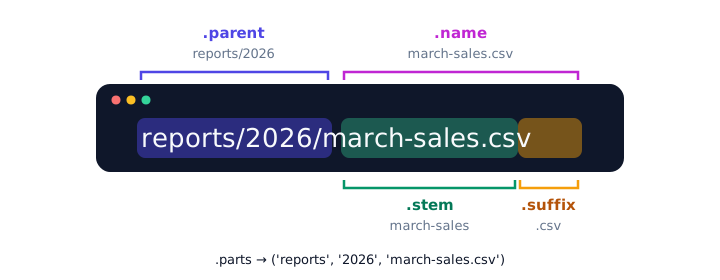
Path attributes at a glance
| Attribute | Meaning | For reports/2026/march-sales.csv |
|---|---|---|
name | Final part, with extension | march-sales.csv |
stem | Name without the extension | march-sales |
suffix | The extension, with the dot | .csv |
parent | The folder that contains it | reports/2026 |
parts | All pieces as a tuple | ('reports', '2026', 'march-sales.csv') |
You can also swap the extension with with_suffix(), which is handy when converting files:
from pathlib import Path

photo = Path("trip") / "beach.png"
print(photo.with_suffix(".jpg").as_posix())
print(photo.parts)
trip/beach.jpg
('trip', 'beach.png')Where am I? Path.cwd() and Path.home()
Path.cwd() returns the current working directory (the folder relative paths start from), and Path.home() returns your user folder. The output depends on your computer, so yours will differ:
from pathlib import Path

print(Path.cwd())
print(Path.home())
On a Mac this might print /Users/sam/projects and /Users/sam; on Windows, something like C:\Users\sam\projects and C:\Users\sam. Paths like Path("reports") that don't start from the top of the drive are relative paths: they're measured from the current working directory.
How do you read and write a file with pathlib?
For small files, write_text() and read_text() open, write or read, and close the file in a single call:
from pathlib import Path

note = Path("reminder.txt")
note.write_text("Pick up the dry cleaning\n", encoding="utf-8")

print(note.read_text(encoding="utf-8"))
Pick up the dry cleaningLike mode "w", write_text() replaces whatever was in the file. For bigger files or line-by-line work, a Path also works anywhere a file name does, so with open(note, encoding="utf-8") as file: is perfectly fine (see the with statement).
How do you check if a file exists in Python?
Use exists(). To know what exists at that path, use is_file() or is_dir():
from pathlib import Path

note = Path("reminder.txt")
note.write_text("Call the dentist\n", encoding="utf-8")

print(note.exists(), note.is_file(), note.is_dir())
print(Path("ghost.txt").exists())
print(Path(".").is_dir())
True True False
False
TruePath(".") means "the current folder". Checking first lets you show a friendly message instead of crashing with a FileNotFoundError:
from pathlib import Path

playlist = Path("road-trip.m3u")

if playlist.exists():
    print(playlist.read_text(encoding="utf-8"))
else:
    print(f"{playlist.name} not found. Create a playlist first!")
road-trip.m3u not found. Create a playlist first!How do you create folders with mkdir()?
mkdir() creates a folder. Two options make it much friendlier:
parents=Truealso creates any missing parent folders.exist_ok=Truemeans "it's fine if the folder already exists".
from pathlib import Path

backup = Path("backups") / "2026" / "march"
backup.mkdir(parents=True, exist_ok=True)

print(backup.is_dir())
print(Path("backups").is_dir())
True
TrueWithout parents=True, this fails with FileNotFoundError if backups doesn't exist yet. Without exist_ok=True, running the script a second time fails with FileExistsError. Using both makes your script safe to run again and again.
How do you list files in a folder?
iterdir() gives you every item inside a folder, and glob() gives you only the items whose names match a pattern, where * means "any characters". The order they come back in depends on your system, so wrap them in sorted() when order matters:
from pathlib import Path

album = Path("album")
album.mkdir(exist_ok=True)
for name in ["beach.jpg", "packing-list.txt", "sunset.jpg", "map.png"]:
    (album / name).write_text("demo", encoding="utf-8")

print("Everything:")
for item in sorted(album.iterdir()):
    print(" ", item.name)

print("Only photos:")
for photo in sorted(album.glob("*.jpg")):
    print(" ", photo.name)
Everything:
beach.jpg
map.png
packing-list.txt
sunset.jpg
Only photos:
beach.jpg
sunset.jpgThe first loop just creates four small sample files so you have something to list. To search subfolders too, use rglob("*.jpg"), which looks through every folder inside album as well.
Real-world example: organizing downloads by extension
Here's the Downloads cleaner. The first part creates some sample files so you can try it safely. The second part moves each file into a folder named after its extension, using replace(), which moves a file to a new path:
from pathlib import Path

downloads = Path("downloads")
downloads.mkdir(exist_ok=True)
for name in ["invoice.pdf", "holiday.JPG", "resume.pdf", "song.mp3", "selfie.jpg", "README"]:
    (downloads / name).write_text("demo", encoding="utf-8")

for item in sorted(downloads.iterdir()):
    if item.is_file() and item.suffix:
        folder = downloads / item.suffix[1:].lower()
        folder.mkdir(exist_ok=True)
        item.replace(folder / item.name)
        print(f"Moved {item.name} -> {folder.name}/")

print()
for folder in sorted(downloads.iterdir()):
    if folder.is_dir():
        names = sorted([file.name for file in folder.iterdir()])
        print(f"{folder.name}: {names}")
Moved holiday.JPG -> jpg/
Moved invoice.pdf -> pdf/
Moved resume.pdf -> pdf/
Moved selfie.jpg -> jpg/
Moved song.mp3 -> mp3/
jpg: ['holiday.JPG', 'selfie.jpg']
mp3: ['song.mp3']
pdf: ['invoice.pdf', 'resume.pdf']Some details that make it robust:
item.suffix[1:]slices off the dot (".pdf"becomes"pdf"), andlower()puts.JPGand.jpgin the same folder.if item.is_file() and item.suffixskips folders and files without an extension, likeREADME, which stays where it is.sorted()processes the files in alphabetical order, so the output is the same every time you run it.
⚠️ Be careful
replace() overwrites a file that already exists at the target path, and there's no undo. Test file-moving scripts on a copy of your folder before running them on real files.
pathlib vs os.path
Older tutorials use the os and os.path modules for the same jobs. They still work, but pathlib code is usually shorter and easier to read:
| Task | os / os.path | pathlib |
|---|---|---|
| Join paths | os.path.join("a", "b.txt") | Path("a") / "b.txt" |
| Check existence | os.path.exists(p) | p.exists() |
| File name | os.path.basename(p) | p.name |
| Create folders | os.makedirs(p, exist_ok=True) | p.mkdir(parents=True, exist_ok=True) |
| List a folder | os.listdir(p) | p.iterdir() |
| Read a whole file | open(p).read() | p.read_text() |
Common mistakes with pathlib
1. Adding strings and paths with +
"reports/" + Path("march.csv") raises a TypeError, because + only joins strings. Use / to join paths, or str(path) if you really need text.
2. Putting a slash at the start of a later part
A part that starts with / is treated as a fresh path from the top of the drive, and everything before it is dropped:
from pathlib import Path

print((Path("data") / "/reports").as_posix())
print((Path("data") / "reports").as_posix())
/reports
data/reports3. Forgetting parents=True or exist_ok=True
A plain mkdir() fails if a parent folder is missing or the folder already exists. Pass both options unless you specifically want those errors.
4. Expecting iterdir() or glob() in alphabetical order
The order depends on the operating system. Wrap the result in sorted() whenever order matters, for example in reports or tests.
Practice exercise
🏋️ Try it yourself
Create the folder projects/website (including projects) in one call. Inside it, write three files: index.html, style.css and todo.txt. Then print the name of every file that is not a .txt file, in alphabetical order, followed by how many files the folder holds.
Show solution
from pathlib import Path

site = Path("projects") / "website"
site.mkdir(parents=True, exist_ok=True)

(site / "index.html").write_text("<h1>Hello</h1>", encoding="utf-8")
(site / "style.css").write_text("h1 { color: navy; }", encoding="utf-8")
(site / "todo.txt").write_text("Add a contact page", encoding="utf-8")

files = sorted(site.iterdir())
for file in files:
    if file.suffix != ".txt":
        print(file.name)

print(len(files), "files in", site.as_posix())
index.html
style.css
3 files in projects/websiteWhat's next?
Congratulations, you've finished the File Handling chapter! You can now read, write, organize and exchange data with files. Next, start the Object-Oriented Programming chapter and learn to create your own types with Python classes and objects.
Key takeaways
- pathlib is a built-in module whose Path objects represent file and folder locations.
- Join paths with the / operator; Python uses the right separator for your operating system.
- name, stem, suffix and parent give you the parts of a path; with_suffix() swaps the extension.
- exists(), is_file() and is_dir() check what is at a path before you use it.
- mkdir(parents=True, exist_ok=True) creates folders safely, even if they already exist.
- iterdir() lists a folder and glob("*.jpg") filters by pattern; wrap them in sorted() for a predictable order.
- read_text() and write_text() read or write a small file in a single call.
Frequently asked questions
What is pathlib used for in Python?
pathlib works with file system paths as objects. It lets you join paths, get file names and extensions, check whether files exist, create folders, list folder contents and read or write files, all with one Path class.
How do I check if a file exists in Python?
Create a Path and call exists(): Path("data.csv").exists() returns True or False. Use is_file() or is_dir() if you also need to know whether it is a file or a folder.
How do I create a folder if it does not exist in Python?
Call Path("folder/subfolder").mkdir(parents=True, exist_ok=True). parents=True creates any missing parent folders and exist_ok=True prevents an error if the folder is already there.
How do I list all files in a folder with pathlib?
Loop over Path("folder").iterdir() for every item, or use Path("folder").glob("*.txt") to match a pattern. Use rglob() to include subfolders, and sorted() to get a predictable order.
Should I use pathlib or os.path?
For new code, pathlib is usually the better choice because it is shorter, easier to read and object-oriented. os.path still works and appears in a lot of older code, so it is worth recognizing.