Python Debugging Tips for Beginners
Updated 9 min read Aimerscrew
A bug is any mistake that makes a program behave differently from what you intended. Every programmer writes bugs; the skill that separates beginners from experienced developers is how quickly they find them. Python debugging is that skill, and it's very learnable. In this lesson, you'll learn a simple process and a set of tools, from humble print() calls to a real step-by-step debugger, plus a checklist of the bugs beginners hit most often.
🌍 Real-life example
Think of a mechanic with a car that makes a strange noise. They don't replace random parts and hope. They take the car for a drive to hear the noise again, check the dashboard lights, form a guess ("the brakes?"), test that one guess, fix it, and drive again to confirm. Good debugging is exactly this calm, step-by-step process.
What is debugging in Python?
Debugging means finding the cause of a bug and fixing it. The word goes back to the early days of computing, when engineers really did pull insects out of machines. Today, "bugs" come in the three types you met in types of errors in Python: syntax errors, exceptions and logic errors. The first two come with an error message. Logic errors don't, which is why the tools in this lesson matter.
The debugging loop
Whatever the bug, the same loop works:
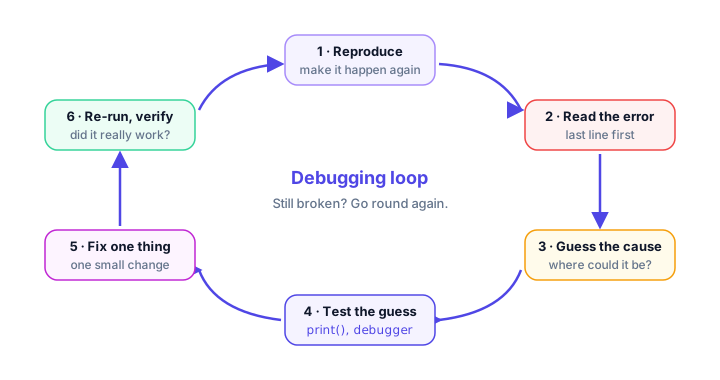
- Reproduce it. Find the exact input that makes the bug happen every time.
- Read the error. If there's a traceback, start at the last line.
- Guess the cause. Which line, and which variable, could be wrong?
- Test the guess. Look at the real values with
print()or a debugger. - Fix one thing. Change a single thing, so you know what fixed it.
- Re-run and verify. Check the original case and a few others.
Tip 1: Read the error message carefully
When there is a traceback, it's a gift. The last line tells you the error type and message, and the frame above it tells you the file and line (see how to read a traceback). Messages like NameError: name 'totl' is not defined. Did you mean: 'total'? often hand you the fix directly. Read the whole message before touching the code.
Tip 2: Print debugging
The simplest debugging tool is print(). Most bugs come from a variable holding a different value than you think it holds, so print it and look. This function should average three temperatures to 22, but it doesn't:
def average_temperature(temps):
    total = 0
    for i in range(1, len(temps)):
        total = total + temps[i]
    return total / len(temps)

print(average_temperature([20, 22, 24]))15.333333333333334No error, just a wrong answer: a logic error. Let's print what happens inside the loop:
def average_temperature(temps):
    total = 0
    for i in range(1, len(temps)):
        print(f"{i=}, {temps[i]=}, {total=}")
        total = total + temps[i]
    return total / len(temps)

print(average_temperature([20, 22, 24]))
i=1, temps[i]=22, total=0
i=2, temps[i]=24, total=22
15.333333333333334Now it's obvious: the loop starts at index 1, so the first temperature (20) is never added. Changing range(1, len(temps)) to range(len(temps)) fixes it. Remove the debug print once you're done.
The f"{x=}" shortcut
Did you notice {i=} in that f-string? Adding = after an expression in an f-string prints the expression's text and its value. It saves typing labels by hand, and it works with whole expressions and format specs too:
price = 19.99
quantity = 3
discount = 0.1

print(f"{price=}, {quantity=}")
print(f"{price * quantity=}")

total = price * quantity * (1 - discount)
print(f"{total=:.2f}")
price=19.99, quantity=3
price * quantity=59.97
total=53.97💡 Tip
Print the type as well as the value when something looks right but behaves wrong. print(type(age)) showing <class 'str'> instantly explains why age + 1 fails: you forgot to convert the result of input().
Tip 3: Use assert to check your assumptions
An assert statement checks that something you believe is true really is. If the condition is False, Python raises an AssertionError with your message:
def apply_discount(price, percent):
    assert 0 <= percent <= 100, f"percent must be 0-100, got {percent}"
    return price * (1 - percent / 100)

print(apply_discount(80, 25))
print(apply_discount(80, 250))
60.0
AssertionError: percent must be 0-100, got 250Asserts catch bugs close to where they start instead of three functions later. They are for checking your own code's assumptions while developing. Python can be run with a flag (-O) that skips all asserts, so for checking user input, raise an exception instead.
Tip 4: Pause your program with breakpoint() and pdb
Print debugging means editing and re-running over and over. A debugger lets you pause the program at any line, look at every variable, and run the code one line at a time. Python has one built in, called pdb (Python debugger). Start it by adding breakpoint() where you want to stop:
def cart_total(prices, discount):
    total = sum(prices)
    breakpoint()
    total = total - discount
    return total


print(cart_total([12.5, 8.0, 4.5], 5))
When you run this file (called checkout.py here), the program pauses and shows a (Pdb) prompt. You type commands; here the user typed p total, p prices, n, p total and c:
> checkout.py(4)cart_total()
-> total = total - discount
(Pdb) p total
25.0
(Pdb) p prices
[12.5, 8.0, 4.5]
(Pdb) n
> checkout.py(5)cart_total()
-> return total
(Pdb) p total
20.0
(Pdb) c
20.0
The line after -> is the next line to run, not one that already ran. On your computer, the file path will be longer.
| pdb command | What it does |
|---|---|
p expr | Print the value of a variable or expression, like p total |
n (next) | Run the current line and stop at the next one |
s (step) | Like n, but step into a function call |
c (continue) | Keep running until the next breakpoint or the end |
l (list) | Show the code around the current line |
w (where) | Show the call stack, like a traceback |
q (quit) | Stop the program and leave the debugger |
h (help) | List all commands |
Don't forget to delete breakpoint() when you're finished, or the program will keep pausing.
Tip 5: Use the VS Code debugger
If you use VS Code with the Python extension, you get the same powers with a mouse:
- Set a breakpoint: click in the margin just left of a line number. A red dot appears.
- Start debugging: press F5 (or open Run and Debug) and choose Python File.
- Inspect: when the program pauses at the red dot, the Variables panel shows every variable's current value. Hover over a name in the code to see its value too.
- Step: F10 runs the next line (step over), F11 goes inside a function (step into), and F5 continues to the next breakpoint.
Other editors, like PyCharm and Thonny, have nearly identical debuggers. Learning one makes the others easy.
Tip 6: Isolate the problem and explain it out loud
When a bug hides in a big program, shrink the search area:
- Test pieces separately. Call one function with simple values you can check by hand, like
average_temperature([10, 20]), which should give15.0. - Comment out half. Temporarily turn half the code into comments. If the bug disappears, it's in that half. Repeat.
- Rubber duck debugging. Explain your code, line by line, to someone else or even a rubber duck on your desk. Saying "and then this line adds the price..." out loud very often makes you spot the mistake yourself.
- Take a break. Seriously. Fresh eyes find in two minutes what tired eyes missed for an hour.
Common beginner bugs checklist
Before you dig deep, check this list. These cause a huge share of beginner bugs:
| Bug | Symptom | Fix |
|---|---|---|
Forgot return | Function gives None | Add return value |
Forgot () when calling | Prints <function greet at 0x...> | Write greet() |
Off-by-one in range() or indexes | First or last item skipped | Remember indexes start at 0 and range stops before the end |
input() not converted | TypeError or "5" + "5" gives "55" | Wrap it in int() or float() |
| Wrong indentation | Line runs every loop instead of once, or the reverse | Check which block each line belongs to |
= instead of == | SyntaxError in an if | Use == to compare |
Comparing floats with == | 0.1 + 0.2 == 0.3 is False | Use round() or compare with a small tolerance |
Naming a variable list, sum or max | Built-in stops working later | Choose a different name |
Here's the first one in action. The function calculates the price with tax but never hands it back:
def add_tax(price):
    total = price * 1.2

print(add_tax(50))NoneAdding return total as the last line of the function fixes it, and the program prints 60.0.
Common mistakes while debugging
1. Changing many things at once
If you change five lines and the bug goes away, you don't know which change fixed it, or whether one of them created a new bug. Change one thing, then re-run.
2. Assuming instead of checking
"That variable is definitely a number" is exactly the kind of belief that hides bugs. Print it or inspect it in the debugger. Let the program tell you the truth.
3. Leaving debug code behind
Stray print() calls clutter the output, and a forgotten breakpoint() freezes the program for the next person. Clean up when the bug is fixed.
4. Only testing the case that failed
After the fix, also try normal values, edge cases (an empty list, zero, a single item) and the original failing input.
Practice exercise
🏋️ Try it yourself
This function should count how many orders are over $50, but for the list below it prints 1 instead of 2. Use print debugging with f"{...=}" to find the bug, then fix it.
def count_big_orders(orders):
    count = 0
    for amount in orders:
        if amount > 50:
            count = count + 1
        return count

print(count_big_orders([75, 20, 120, 45]))1Show solution
Adding print(f"{amount=}, {count=}") as the first line inside the loop shows only one line of output: amount=75, count=0. The loop stops after the first order because return count is indented inside the loop. Move it out one level:
def count_big_orders(orders):
    count = 0
    for amount in orders:
        if amount > 50:
            count = count + 1
    return count

print(count_big_orders([75, 20, 120, 45]))2What's next?
That wraps up errors and exceptions. You can read tracebacks, handle and raise errors, design your own, and debug with confidence. Next, start the File Handling chapter and learn to read files in Python, where these skills will come in handy straight away.
Key takeaways
- Debugging is a loop: reproduce the bug, read the error, guess the cause, test the guess, fix one thing and re-run.
- Most bugs are variables holding different values than you think, so print them and check.
- Use f"{x=}" to print both an expression and its value, for example f"{total=}".
- assert checks your own assumptions during development; use raise for validating user input.
- breakpoint() pauses the program in pdb, where p, n, s, c and q let you inspect and step through code.
- The VS Code debugger does the same with red-dot breakpoints, a Variables panel and F10/F11 stepping.
- Check the common beginner bugs first: missing return, missing (), off-by-one, unconverted input and wrong indentation.
Frequently asked questions
How do I debug Python code as a beginner?
Read the error message first, starting from the last line of the traceback. Then print the variables involved, or pause the program with breakpoint() or your editor's debugger, and compare their real values with what you expected.
What does f"{x=}" do in Python?
It is an f-string shortcut, available since Python 3.8, that prints the expression text followed by its value, such as x=5. It is handy for quick print debugging.
How do I use breakpoint() in Python?
Add breakpoint() on the line where you want to pause and run the program. You get a (Pdb) prompt where p name prints a variable, n runs the next line, s steps into a function, c continues and q quits.
What is the difference between assert and raise?
assert checks an assumption in your own code and can be turned off with python -O. raise is for real error handling, like rejecting invalid user input, and is never turned off.
How do I set a breakpoint in VS Code for Python?
Click in the margin to the left of a line number so a red dot appears, then press F5 and choose Python File. The program pauses at the dot so you can inspect variables and step with F10 and F11.
What is rubber duck debugging?
It means explaining your code line by line out loud, even to a rubber duck. Putting your thinking into words often reveals the mistake without any other help.