How to Install Python
Updated 6 min read Aimerscrew
Before you can write your first program, you need to install Python on your computer. The good news: it's free, it takes about five minutes, and you only do it once. This guide walks you through installing Python on Windows, macOS and Linux, checking that it works, and choosing an editor to write your code in.
🌍 Real-life example
Installing Python is like installing a music app before you can play songs. The app (Python) is the player; your programs are the songs. Once the player is set up, you can play as many songs as you like without installing anything again.
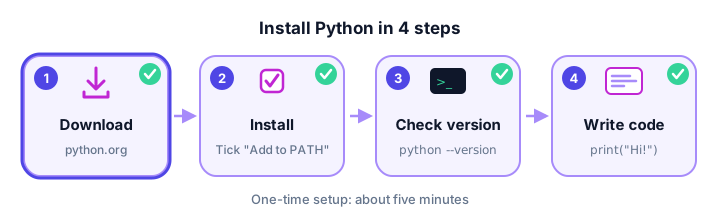
The four steps at a glance
Whatever computer you use, the process is the same four steps:
You'll type a few commands into a terminal: a text window where you give your computer instructions by typing instead of clicking. Here's how to open one:
- Windows: press the Start button, type
Terminal(orCommand Prompt) and press Enter. - macOS: press Cmd + Space, type
Terminaland press Enter. - Linux: on Ubuntu and many others, press Ctrl + Alt + T.
How do you install Python on Windows?
- Go to python.org, open the Downloads menu and click the button for the latest Python 3 release.
- Open the downloaded installer file (it ends in
.exe). - At the bottom of the first screen, tick "Add python.exe to PATH". This is the most important step.
- Click Install Now and wait for the progress bar to finish.
- When you see "Setup was successful", click Close.
⚠️ Don't skip the PATH checkbox
PATH is the list of folders Windows searches when you type a command. If Python isn't on that list, typing python in a terminal won't work. If you forgot to tick the box, run the installer again, choose Modify (or uninstall and reinstall) and make sure it's ticked.
📝 Note
python.org may also offer a newer tool called the Python install manager for Windows. Either option works for this tutorial. What matters is that typing python --version in a terminal shows a Python 3 version afterward.
How do you install Python on macOS?
- Go to python.org, open Downloads and click the latest Python 3 release for macOS.
- Open the downloaded
.pkgfile and click Continue through the screens, then Install. Enter your Mac password if asked. - When it finishes, close the installer.
On a Mac, the command is python3, not python. The plain python command often doesn't exist, or points to something else, so get into the habit of typing the 3.
How do you install Python on Linux?
Most Linux distributions already include Python 3, because the system itself uses it. Check first:
python3 --versionPython 3.12.3If you see a version number, you're done. If you get "command not found", install it with your package manager. On Ubuntu or Debian:
sudo apt update
sudo apt install python3
On Fedora, use sudo dnf install python3. The word sudo runs the command as an administrator, so you'll be asked for your password.
How do you check your Python version?
Checking the version proves Python is installed and reachable from the terminal. Type the command for your system and press Enter:
| System | Command |
|---|---|
| Windows | python --version |
| macOS | python3 --version |
| Linux | python3 --version |
python --versionPython 3.14.0Your number may be different, and that's fine. Anything that starts with Python 3 works. Version 3.12 or newer is ideal, because the error messages in this tutorial match those versions.
💡 Tip
On Windows, you can also type py --version. The py launcher comes with the python.org installer and is handy if you ever have more than one Python version installed.
What is the Python shell (REPL)?
Python comes with an interactive shell, also called the REPL: Read, Evaluate, Print, Loop. It reads a line you type, runs it, prints the result and waits for the next line. It's perfect for quick experiments, like a calculator that understands Python.
Start it by typing python (Windows) or python3 (macOS and Linux) on its own:
python3You'll see a short welcome message, then three arrows: >>>. That's the prompt, Python's way of saying "I'm ready, type something." Try typing these lines one at a time:
60 * 24
print("Coffee break!")
>>> 60 * 24
1440
>>> print("Coffee break!")
Coffee break!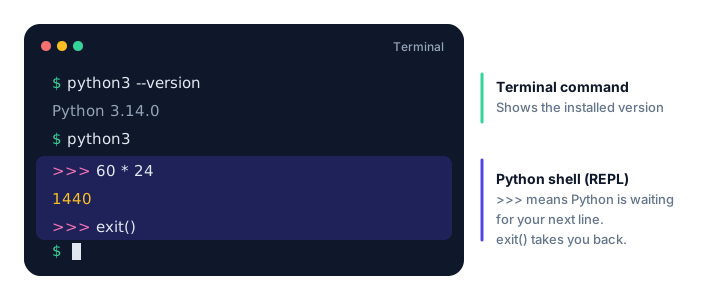
>>> prompt means you're now talking to Python.To leave the shell, type exit() and press Enter. You can also press Ctrl + D on macOS and Linux, or Ctrl + Z then Enter on Windows.
Which code editor should you use?
The shell is great for one-liners, but real programs live in files. To write them, you need a code editor: a text editor built for code, with colors, auto-indenting and a Run button.
| Editor | Best for | Notes |
|---|---|---|
| VS Code + Python extension | Most learners | Free, works on every system, grows with you. Install the official "Python" extension from Microsoft inside VS Code. |
| IDLE | Starting right now | Comes with Python from python.org. Simple and lightweight. |
| Online editors | School or work computers | Run Python in your browser with nothing to install. Handy, but save your work often. |
We recommend VS Code. After installing it, open the Extensions panel, search for "Python", install the extension, and you're ready.
Common mistakes when installing Python
1. Forgetting "Add python.exe to PATH" on Windows
In Command Prompt, you'll see:
'python' is not recognized as an internal or external command,
operable program or batch file.
Reinstall (or choose Modify) and tick the PATH box, then open a new terminal window.
2. The Microsoft Store message
If Python isn't installed yet, Windows may answer with:
Python was not found; run without arguments to install from the Microsoft Store, or disable this shortcut from Settings > Apps > Advanced app settings > App execution aliases.This means Windows can't find a real Python. Install it from python.org as shown above, then open a new terminal.
3. Typing python instead of python3 on a Mac
zsh: command not found: pythonUse python3 on macOS and Linux.
4. Typing terminal commands inside the Python shell
python --versionNameError: name 'python' is not definedIf you see >>>, you're inside Python, not the terminal. Type exit() first, then run the command.
Practice exercise
🏋️ Try it yourself
Check that everything works. In your terminal: (1) print your Python version, (2) open the Python shell, (3) work out how many hours are in a year (365 days of 24 hours), and (4) exit the shell.
Show solution
python3 --version
python3
Then, at the >>> prompt:
365 * 24
exit()
>>> 365 * 24
8760
>>> exit()On Windows, type python instead of python3.
What's next?
Python is installed and ready. Now it's time to write a real program and save it in a file: Your First Python Program: Hello, World!
Key takeaways
- Download Python 3 for free from python.org; Linux usually has it already.
- On Windows, tick "Add python.exe to PATH" before clicking Install Now.
- Check your installation with python --version (Windows) or python3 --version (macOS and Linux).
- Type python or python3 alone to open the interactive shell, shown by the >>> prompt.
- Leave the shell with exit(), Ctrl+D on macOS and Linux, or Ctrl+Z then Enter on Windows.
- VS Code with the Python extension is a great free editor; IDLE comes with Python.
Frequently asked questions
Is Python free to install?
Yes. Python is free and open source. Always download it from the official site, python.org, to get a safe, up-to-date version.
Which version of Python should I install?
Install the latest stable Python 3 release shown on python.org. Never install Python 2, which stopped receiving updates in 2020.
Why does python say "not recognized" on Windows?
Python was installed without the "Add python.exe to PATH" option. Run the installer again, choose Modify or reinstall with the box ticked, then open a new terminal window.
Should I type python or python3?
On Windows, type python (or py). On macOS and Linux, type python3, because python may be missing or point to an old version.
Do I need an IDE to write Python?
No. You can start with IDLE, which comes with Python, or any code editor. Many beginners choose VS Code with the free Python extension.
Can I use Python without installing it?
Yes. Online Python editors run code in your web browser, which is handy on computers where you cannot install software.