Working with CSV Files in Python
Updated 7 min read Aimerscrew
Spreadsheets are everywhere: sales figures, contact lists, sports stats, bank statements. When you export one from Excel or Google Sheets, you usually get a CSV file. In this lesson, you'll learn how to use the Python csv module to read rows as lists or dictionaries, write new CSV files, and avoid the classic CSV traps.
🌍 Real-life example
Your bank lets you download last month's transactions as a CSV file. Instead of adding up grocery spending by hand in a spreadsheet, a ten-line Python script can read the file and give you the total for every category in a second, every month.
What is a CSV file?
CSV stands for comma-separated values. It's a plain text file where each line is one row of a table, and commas separate the columns. The first line is usually a header with the column names. Here's sales.csv, a small café's sales for three days, which we'll use throughout this lesson:
date,product,quantity,price
2026-03-01,Coffee,3,4.50
2026-03-01,Bagel,2,2.75
2026-03-02,Coffee,5,4.50
2026-03-02,Muffin,4,3.25
2026-03-03,Bagel,1,2.75
Python includes a csv module in its standard library, so there's nothing to install. You just import it.
How do you read a CSV file in Python?
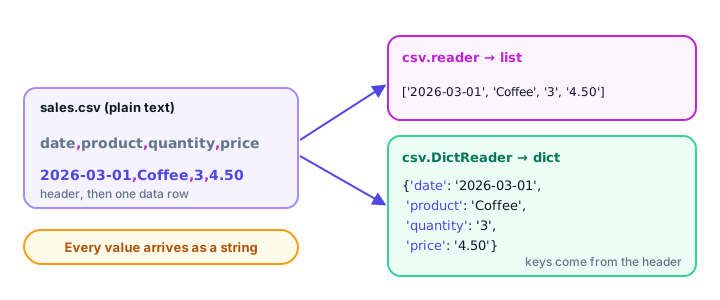
Open the file with the with statement, pass the file object to csv.reader(), and loop over it. Each row arrives as a list of strings:
import csv

with open("sales.csv", encoding="utf-8", newline="") as file:
    reader = csv.reader(file)
    for row in reader:
        print(row)
['date', 'product', 'quantity', 'price']
['2026-03-01', 'Coffee', '3', '4.50']
['2026-03-01', 'Bagel', '2', '2.75']
['2026-03-02', 'Coffee', '5', '4.50']
['2026-03-02', 'Muffin', '4', '3.25']
['2026-03-03', 'Bagel', '1', '2.75']The newline="" argument lets the csv module handle line endings itself. It matters most when writing, and we'll see why below. Make it a habit for every CSV file you open.
How do you skip the header row?
The built-in next() function takes the next row from the reader. Call it once before the loop to grab the header, and the loop starts at the first data row. (You'll learn how next() works in Python iterators.)
import csv

with open("sales.csv", encoding="utf-8", newline="") as file:
    reader = csv.reader(file)
    header = next(reader)
    print("Columns:", header)

    for date, product, quantity, price in reader:
        print(f"{date}: {quantity} x {product}")
Columns: ['date', 'product', 'quantity', 'price']
2026-03-01: 3 x Coffee
2026-03-01: 2 x Bagel
2026-03-02: 5 x Coffee
2026-03-02: 4 x Muffin
2026-03-03: 1 x BagelBecause each row has exactly four values, you can unpack them straight into four variables in the for line.
Real-world example: a sales report with totals
The café owner wants revenue per product. Remember: the csv module gives you strings, so convert quantity with int() and price with float() before multiplying. A dictionary keeps a running total for each product:
import csv

totals = {}

with open("sales.csv", encoding="utf-8", newline="") as file:
    reader = csv.reader(file)
    next(reader)
    for date, product, quantity, price in reader:
        amount = int(quantity) * float(price)
        totals[product] = totals.get(product, 0) + amount

for product, amount in totals.items():
    print(f"{product:<8} ${amount:6.2f}")

print(f"{'TOTAL':<8} ${sum(totals.values()):6.2f}")
Coffee $ 36.00
Bagel $ 8.25
Muffin $ 13.00
TOTAL $ 57.25Reading rows as dictionaries with DictReader
Remembering that row[2] is the quantity is error-prone. csv.DictReader uses the header row as keys, so each row becomes a dictionary and you access values by column name. It also skips the header for you:
import csv

with open("sales.csv", encoding="utf-8", newline="") as file:
    reader = csv.DictReader(file)
    print(reader.fieldnames)

    for row in reader:
        if row["product"] == "Coffee":
            print(row)
['date', 'product', 'quantity', 'price']
{'date': '2026-03-01', 'product': 'Coffee', 'quantity': '3', 'price': '4.50'}
{'date': '2026-03-02', 'product': 'Coffee', 'quantity': '5', 'price': '4.50'}Code like row["price"] is easier to read, and it keeps working even if someone adds a new column in the middle of the spreadsheet.
How do you write a CSV file in Python?
Open the file in "w" mode with newline="", create a csv.writer, and call writerow() for one row or writerows() for many. Each row is a list:
import csv

scores = [
    ["Lions", 3, 1],
    ["Eagles", 2, 2],
    ["Sharks", 0, 4],
]

with open("league.csv", "w", encoding="utf-8", newline="") as file:
    writer = csv.writer(file)
    writer.writerow(["team", "wins", "losses"])
    writer.writerows(scores)

with open("league.csv", encoding="utf-8") as file:
    print(file.read())
team,wins,losses
Lions,3,1
Eagles,2,2
Sharks,0,4Unlike write(), the csv writer converts numbers to text for you and adds the line breaks.
⚠️ Why newline="" matters
The csv writer ends every row with its own line break. If you leave out newline="", Windows adds a second one, and your file gets an empty line between every row when you open it in Excel. Passing newline="" fixes this on every operating system.
Writing dictionaries with DictWriter: exporting contacts
When your data is already a list of dictionaries, csv.DictWriter is the natural fit. You tell it the column order with fieldnames, call writeheader() once, then write the rows:
import csv

contacts = [
    {"name": "Dana Lee", "email": "dana@example.com", "city": "Toronto"},
    {"name": "Omar Haddad", "email": "omar@example.com", "city": "London"},
    {"name": "Sofia Rossi", "email": "sofia@example.com", "city": "Rome, Italy"},
]

with open("contacts.csv", "w", encoding="utf-8", newline="") as file:
    writer = csv.DictWriter(file, fieldnames=["name", "email", "city"])
    writer.writeheader()
    writer.writerows(contacts)

with open("contacts.csv", encoding="utf-8") as file:
    print(file.read())
name,email,city
Dana Lee,dana@example.com,Toronto
Omar Haddad,omar@example.com,London
Sofia Rossi,sofia@example.com,"Rome, Italy"Look at the last line. Because Rome, Italy contains a comma, the writer wrapped it in double quotes so the comma isn't mistaken for a column separator. When you read the file back, csv.reader removes the quotes again. This is the main reason to use the csv module instead of splitting lines yourself.
💡 Tip
Some countries use semicolons instead of commas in CSV files, because the comma is their decimal separator. Pass delimiter=";" to csv.reader, csv.writer or their dictionary versions to handle them.
csv.reader vs DictReader, csv.writer vs DictWriter
| Tool | Each row is | Header handling | Use when |
|---|---|---|---|
csv.reader | A list of strings | Returned as the first row | Simple files, or no header |
csv.DictReader | A dictionary | Used as keys automatically | You want columns by name |
csv.writer | A list you pass in | You write it with writerow() | Data is in lists |
csv.DictWriter | A dictionary you pass in | writeheader() | Data is in dictionaries |
Common mistakes with CSV files
1. Splitting lines with split(",")
It looks simpler, but it breaks as soon as a value contains a comma:
line = 'Sofia Rossi,sofia@example.com,"Rome, Italy"'
print(line.split(","))
['Sofia Rossi', 'sofia@example.com', '"Rome', ' Italy"']Four pieces instead of three. The csv module understands quotes; split() doesn't.
2. Doing math on strings
Every value from a CSV file is a string, even "3". Adding two of them joins the text: "3" + "5" gives "35", not 8. Convert with int() or float() first.
3. Forgetting newline=""
Your file looks fine in a text editor but shows blank rows in Excel on Windows. Always open CSV files with newline="".
4. Writing dictionaries with keys missing from fieldnames
If a dictionary has a key that isn't in fieldnames, DictWriter raises a ValueError. List every column you want in fieldnames.
Practice exercise
🏋️ Try it yourself
Using sales.csv and csv.DictReader, print how many items the café sold on each date, like 2026-03-01: 5 items.
Show solution
import csv

items_per_day = {}

with open("sales.csv", encoding="utf-8", newline="") as file:
    for row in csv.DictReader(file):
        date = row["date"]
        items_per_day[date] = items_per_day.get(date, 0) + int(row["quantity"])

for date, count in items_per_day.items():
    print(f"{date}: {count} items")
2026-03-01: 5 items
2026-03-02: 9 items
2026-03-03: 1 itemsWant 1 item instead of 1 items? Add an if that picks the word based on count.
What's next?
CSV is perfect for flat tables, but it can't easily store nested data like a user with a list of favorite songs. For that, the most popular format on the web is JSON. Next: working with JSON in Python.
Key takeaways
- CSV files are plain text tables: one row per line, with commas between columns.
- csv.reader returns each row as a list of strings; csv.DictReader returns each row as a dictionary keyed by the header.
- Use next(reader) to skip or read the header row when using csv.reader.
- csv.writer writes lists with writerow() and writerows(); csv.DictWriter writes dictionaries after writeheader().
- Always open CSV files with newline="" to avoid blank rows on Windows.
- Every value read from a CSV file is a string, so convert numbers with int() or float() before doing math.
Frequently asked questions
How do I read a CSV file in Python?
Import the csv module, open the file with open("data.csv", encoding="utf-8", newline=""), then loop over csv.reader(file) to get each row as a list, or csv.DictReader(file) to get each row as a dictionary.
How do I write a CSV file in Python?
Open the file in "w" mode with newline="", create writer = csv.writer(file), then call writer.writerow(["a", "b"]) for one row or writer.writerows(rows) for a list of rows.
Why does my CSV file have blank lines between rows?
You opened the file without newline="". The csv writer adds its own line endings, and on Windows Python adds another one. Open the file with newline="" to fix it.
What is the difference between csv.reader and csv.DictReader?
csv.reader gives each row as a list, so you access values by position like row[1]. csv.DictReader uses the header row as keys, so you access values by name like row["product"].
Do I need pandas to work with CSV files?
No. The built-in csv module handles reading and writing CSV files. pandas is a separate library that is useful for heavy data analysis, but it is not required.